When exporting leads, there is a maximum export limit of 10,000 leads per export. If your search returns more than 10,000 results, you'll need to narrow your list or split it into multiple exports.
This video/article covers two methods for staying within the export limit:
- Use filters to reduce the number of results.
- Split your search area using the Polygon tool.
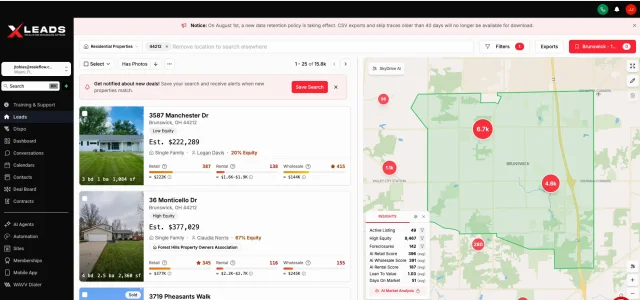
Option 1: Narrow Your Results with Filters
The easiest way to reduce your lead count is by applying additional filters.
- From the Leads page, perform your search (for example, by ZIP code).
- If your results exceed 10,000 leads, click Filters.
- Apply additional criteria such as:
- Bedrooms
- Bathrooms
- Property Value
- Other available property filters
Example
If your search returns approximately 16,000 leads, you could:
- Set Maximum Bedrooms = 3 to create one export.
- Then change the filter to Minimum Bedrooms = 4 to create a second export.
Using property characteristics is an easy way to divide your results into multiple exportable lists.
Option 2: Split Your Search Area with the Polygon Tool
If you've already applied all the filters you need and your results still exceed 10,000 leads, you can divide the search area using the Polygon tool.
Step 1: Create a List
Before selecting leads, create a list to store them.
- Click the Lists button.
- Select Create New List, or choose an existing list.
- Give your list a descriptive name (for example, Brunswick – First Half).
Tip: From the Lists menu, you can also rename, duplicate, clear, or delete lists using the three-dot menu next to each list.
Step 2: Draw Your First Polygon
- Click the Pencil (Polygon) icon in the upper-right corner of the map.
- Left-click to place points around the portion of the map you want to include.
- Complete the shape by clicking your starting point.
The map will now display only properties:
- Inside the polygon
- That match all of your existing filters
Step 3: Adjust the Polygon Size
After drawing the polygon, check the number of matching leads.
- If the count is still above 10,000, drag the polygon points to reduce the area.
- Continue adjusting until the lead count is below the export limit.
For best results, use streets or other recognizable boundaries to divide the area.
Step 4: Select and Export the Leads
Once your lead count is under 10,000:
- Click Select.
- Choose Select All.
- Add the selected leads to your list.
- Click Export.
- Choose the export fields and any optional Lead Trace data.
- Click Export to generate your file.
Your completed export will be available from the Exports section.
Export the Remaining Leads
After exporting the first group, you have two options.
Option A: Reuse the Same List
- Clear or deselect the exported leads from the list.
- Move the polygon to cover the remaining area.
- Select all leads in the new area.
- Export again.
Option B: Create a Second List
If you'd like to keep your exports organized:
- Create another list (for example, Brunswick – Second Half).
- Move the remaining leads into the new list.
- Export the second list.
This approach keeps each portion of your search saved separately for future use.
Tips for Dividing Large Searches
- Try using streets or major roads as boundaries when drawing polygons.
- Keep each polygon under the 10,000-lead export limit.
- Apply property filters before using the Polygon tool whenever possible.
- You can create as many lists and exports as needed to cover your entire search area.
Need Help?
If you have questions about exporting large lead lists or using the Polygon tool, please contact our support team for assistance.
Josh Tobias
Comments