This guide walks you through how to select, view, and manage your AI Sellability Score and SkyDrive AI territories.
While each AI feature requires its own territory selection, the setup process is the same for both.
Please Note: The Selection/Manage for both of these are the same. However, you will need to select territories for each.
Accessing AI Territory Setup
Please Note: If you have Nationwide Access, there is no need to select a territory because you have access to the data Nationwide.
- Click Leads in the left-hand navigation to open your Leads Dashboard.
- On the right side of the dashboard, locate Complete Your Setup.
- Choose one of the following:
- Set Up Your AI Territory (Sellability Score)
- Set Up Your SkyDrive AI Territory
A couple of things to Note:
You may select the same territories for both tools or choose different ones. Each must be configured separately.
Understanding AI Territory & SkyDrive Credits
Your account includes a specific number of AI territory credits, which may be applied to:
- Zip Codes
- Counties
- States
The number of available credits is displayed before you make your selections.
Territory Management Window Overview
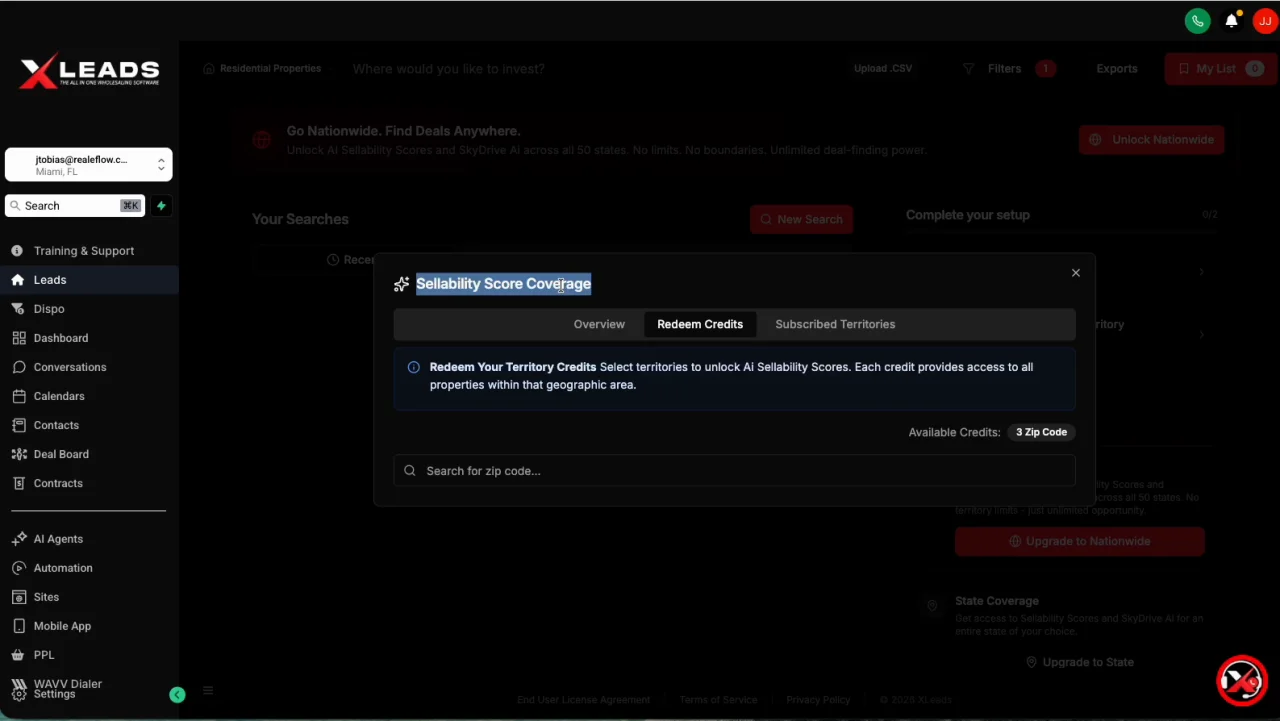
When setting up an AI territory, a management window will open with three tabs:
1. Overview
- Displays your available coverage credits
- Shows how may territories available and assigned to your account
2. Redeem Credits
This is where you select new territories.
- Enter a zip code, county, or state in the search field.
- Select the matching result from the list.
- The territory will move into Selected Territories.
- Repeat the process to add multiple territories.
- Click Redeem Selected Credits to apply them to your account.
Once redeemed, your available credit count will update automatically.
3. Subscribed Territories
- Shows all territories currently assigned to your account
- Use this tab to review your active AI coverage at any time
Managing or Changing Territories
- AI territory selections are not permanent
- You may change your territories once per month
- To make changes, contact the Support Team
- Existing territories will be removed
- You’ll then be able to select new ones based on your available credits
Using AI Features After Setup
Once your territories are selected:
- AI Sellability Scores will be available when running lead searches within your chosen territories
- SkyDrive AI insights will display for properties located in those areas
To apply AI filters or view SkyDrive AI details, make sure your search is conducted within one of your subscribed territories.
Josh Tobias
Comments