This article provides an overview of how to find and manage your leads from start to finish. You’ll learn how to search for leads using available filters, organize and manage your lead list, and understand the different actions you can take to move those leads forward. You will learn how to
1. Filter a List.
- How to Navigate filters
- AI Scores filter
- Why am I seeing ‘Limit Reached’ in the search bar?
2. How to view:
- Recent Searches
- Quick Search
- How these work
- Saved Searches
3. Navigating the MY LIST Button
- How to create a LIST
- Add Properties to the LIST
- Identify what LIST leads will be added to
- Manage the LIST
- Navigating between LIST
- Actions to take within the LIST
- Export - Request phone #'s and email addresses in the Export.
- Direct Mail
- SkyDrive AI Report
Start a Property Search.
- Click Leads from the left navigation menu.
- In the “Where would you like to invest?” field, enter:
- Zip code
- City
- County
- State
- Or a specific property address
- Select the correct option from the dropdown.
Results will display:
- Property list on the left
- Map view on the right
Notes:
- The system remembers Recent Searches
- You can revisit previous searches from the dashboard
- With the Basic Plan, you can search one location at a time (remove a location using the “X” if needed)
Apply Filters
Click the FILTERS button to narrow your results.
Filters are organized by tabs along the top portion of the screen, including:
- Lead Types:
-
Plan Note with Lead Types:
- Basic plans allow selection of one lead type
- Pro and X plans allow multiple selections.
-
Plan Note with Lead Types:
- Sellability Scores
- Ownership
- Liens : To filter for deceased probates:
- Click the Liens tab.
- Open the dropdown under Lien Types.
- Select Deceased Probates.
- Property Features
- Valuations
- Property Types
-
Sellability Scores (AI Feature)
Sellability Scores measure the propensity to sell within 90 days.
Score Range:- 0 = Least likely
- 1000 = Most likely
- Available score types:
- Retail
- Rental
- Wholesale
Recommended: Start with a minimum score of 500.- After entering a value Click outside the field to apply it
- Confirm it appears in the Active Filters panel.
-
Active Filters Panel
On the right side of the screen you can:- View all applied filters
- Remove individual filters (click “X”)
- Clear all filters
- See live result counts. This will be the Number on the SEE RESULTS button in the bottom right hand corner of the FILTERS button
-
Save a Search (Optional)
Saving allows you to quickly re-run the same criteria later and also allow you to Activate a Deal Alert- Click Save Filters
- Name your search
- Click Save
-
Deal Alerts: From the dashboard
- Go to Saved Searches
- Click the bell icon to the right of the Saved Search to enable alerts
When enabled: You will receive email notifications when new properties match your criteria.
Saved searches always refresh with current data when reopened.
Create and Manage Lists
Lists allow you to organize properties for action.
Create Your First List
- Select properties (Individual, Page or Entire List)
- Click Add to List (when creating a list for the first time, when selecting the ADD option, you will be promoted to Create a Name for the LIST
- Name your list
- Optional: Add description and tags
- Click Create List
You can create multiple lists to organize by:
- Location
- Strategy
- Lead type
- Marketing campaign
Switching Between Lists
- Click the My List button
- Select the list you want to view
- Actions will apply to the active list
Take Action on a List
Once properties are on a LIST, you can:
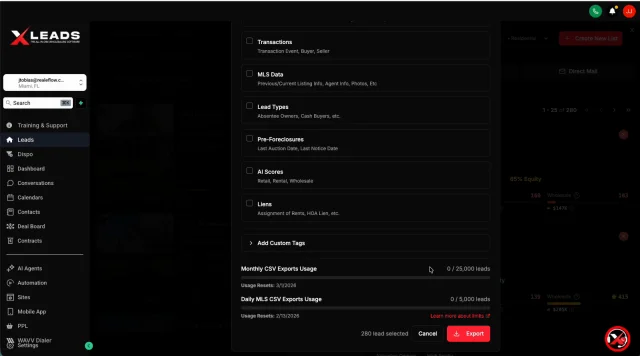
1. Export
Exports generate a downloadable spreadsheet.
Options include:
- Standard format
- Include owner phone numbers and emails (Lead Trace data)
- Select specific data fields
- Add tags to exported records
- Facebook Custom Audience
Usage Limits:
- Monthly export limits apply
- Separate daily MLS data limits apply
All exported files are available in the EXPORTS Button.
2. SkyDrive AI - Create a SkyDrive AI report
Run AI-powered property condition analysis.
Options:
- Scan entire list
- View scan history
- Redeem or manage credits
3. Direct Mail - Launch a direct mail campaign directly from your list.
Workflow:
- Click on LIST Button
- Select the LIST
- Click Direct Mail
Josh Tobias
Comments