This article explains how to locate comparable properties (comps), filter them to match your subject property, and generate a comp report.
You can access comps in two ways:
-
By searching a geographic area and selecting a property from the results
-
By entering a specific property address directly into the search bar
Once you open the Property Details, you can access the Comps tab to view and analyze comparable properties.
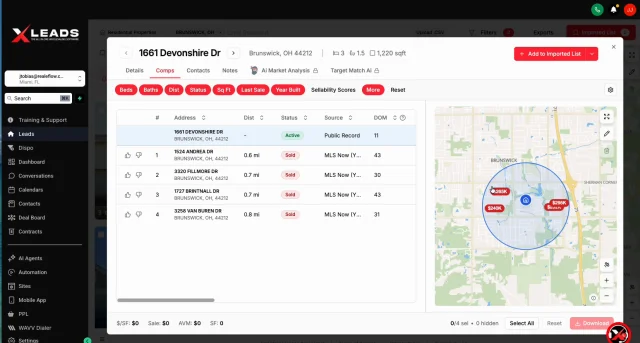
Accessing the Comps for a Property
-
Click Leads in the left navigation menu.
-
Search for a Location or Specific Property address in the search bar.
Please note: If you search for a specific property address, you will be taken directly to the Property details. -
Apply any filters using the Filters button to narrow your property list.
-
Click on a property address to open the Property Details page.
-
At the top of the page, select the Comps tab.
You will now see the Comps screen, where comparable properties are displayed.
Understanding the Comps Screen
The Comps screen includes two main sections:
Property List (Left Side)
The left side shows a list of comparable properties with detailed data including:
-
Address
-
Beds and baths
-
Square footage
-
Days on market
-
Source (Public Records or MLS)
-
Sale data and additional property metrics
You can scroll up/down to view properties and left/right to see additional columns of data.
Map View (Right Side)
The map displays:
-
Subject Property highlighted in blue
-
Comparable properties as pin drops
Different pin colors indicate listing status such as:
-
Active
-
Pending
-
Sold
Clicking a pin will display quick property details and allow you to open the full property record.
Filtering Your Comps
To refine your comparable properties, use the filters located at the top of the screen.
Common Filters
You can adjust:
-
Beds – set minimum, maximum, or range
-
Baths – filter by number of bathrooms
-
Distance – adjust the radius from the subject property
-
Square Footage
-
Last Sale Date
-
Year Built
-
Sellability Scores
After making a change, simply click outside the field to apply the filter.
Advanced Filters
Click the More button to access additional filters including:
-
Lead Type
-
Property Type (e.g., single-family, condo, multi-family)
-
Lot Size
-
Number of Stories
-
Lien Types
-
Rental Estimate
-
Property Features
Property feature filters may include:
-
Basement
-
Fireplace
-
Garage
-
HOA membership
Click Done after applying these filters.
Filtering by Listing Status and Data Source
You can also control which property data appears in your comp list.
-
Click the Status filter.
-
Select the listing status you want to include:
-
Sold
-
Active
-
Pending
-
-
Choose the data source:
-
MLS
-
Public Records
-
Rentals/Leases
-
Because data can come from multiple sources, you may occasionally see the same property listed twice if it appears in both MLS and Public Records.
Using the Polygon Map Tool
You can refine your comps by drawing a custom search area on the map.
-
Click the pencil icon on the right side of the map.
-
Select Draw Polygon.
-
Left-click on the map to drop pins and create a custom shape.
-
Continue placing pins until your final point connects to the starting point.
Once the shape closes, the system will automatically filter comps to only those inside the selected area.
Sorting and Customizing Columns
You can sort property data and adjust which columns appear.
Sorting Columns
Click any column header (such as Days on Market or Sale Price) to sort the property list by that metric.
Editing Columns
-
Click the gear icon above the map.
-
Select Edit Columns.
-
Check or uncheck columns to show or hide them.
-
Drag the dot icon next to a column to reorder it.
-
Click Save Changes.
Viewing Additional Property Details
You can explore comps further by:
-
Clicking the property address in the list
-
Clicking a pin on the map
-
Opening the property details in a new browser tab
This allows you to review the full property record before including it in a report.
Creating a Comp Report
You can generate a report showing the subject property alongside selected comparable properties.
Steps to Create a Report
-
Select the comps you want to include by clicking the thumbs-up icon next to each property.
-
As you select properties, summary metrics will appear at the bottom of the screen, including:
-
Average price per square foot
-
Sale price
-
AVM values (if available)
-
-
Click the Download button.
The system will generate a Comp Report in a new browser tab.
Saving the Report
Once the report opens:
-
Review the subject property and selected comps.
-
Click the Download icon in the upper-right corner of the browser window.
-
Save the report to your computer.
If you include many comps, the report will automatically expand across multiple pages.
You can generate as many comp reports as needed.
Josh Tobias
Comments