Overview
This guide walks you through how to import a list into the LEADS section of your account. Importing allows you to enrich your data using the platform’s database, uncover property details, and take action on those leads, such as exporting, running reports, or launching direct mail campaigns
This will walk through the steps when your list includes the Full Property Address with the address, city, state, and zip
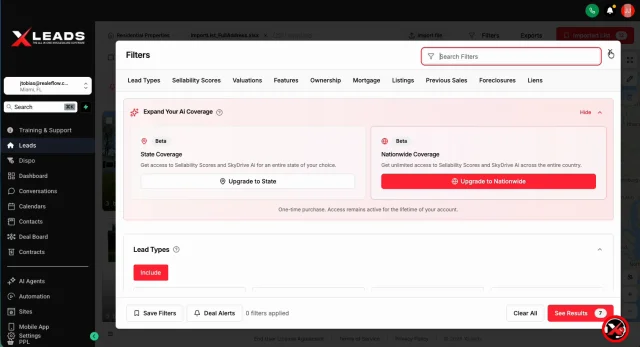
Step 1: Navigate to the Leads Section
-
From the left-hand navigation menu, click Leads
-
At the top of the page, select Import File
Step 2: Prepare Your File
You can import:
-
CSV files
-
Excel files (. xls or.xlsx)
Important Notes:
-
Excel imports only the first sheet
-
If your file has multiple sheets, either:
-
Combine them into one sheet, or
-
Import each sheet separately (ensuring the desired sheet is first)
-
-
-
A sample template is available for download (optional but helpful)
Step 3: Upload Your File
-
Drag and drop your file into the upload area
or -
Click Choose File to select it from your computer
Once uploaded:
-
A preview will display the first 3 rows
-
Column headers will be shown (e.g., Address, City, State, ZIP)
Tip:
If you have additional columns, you can scroll horizontally in the preview to review them.
Step 4: Review & Confirm Mapping
Click Next to proceed.
On this screen, you’ll see:
-
Total rows and columns
-
System status (e.g., “Ready to Import”)
-
How your columns are mapped (e.g., Street Address → Address field)
Optional: Override Mapping
-
Use this if your file is missing standard fields (e.g., only street address)
-
A separate guide is available for advanced mapping
If everything looks correct, click Import
Step 5: Review Import Results
After importing, the system will display:
-
Number of matched properties (found in database)
-
Number of unmatched or skipped entries
Click Show Properties to view your results.
Step 6: Explore Your Imported Leads
You’ll now see:
-
A list view on the left
-
A map view on the right
Available Actions:
-
Click any property address to view full details
-
Use the Filters button to refine your list
Step 7: Add Leads to a List
Lists allow you to organize and take action on your leads.
Options to Add Properties:
-
Individually: Click the checkbox on each property
-
From Property Details: Click into a property and select Add to List
-
Bulk Select:
-
Click Select at the top
-
Choose Select Page or Select All
-
Visual Indicator:
-
A checkmark on a property means it has been added to the selected list
Managing Lists:
-
The active list is shown in the top right (e.g., “Imported List”)
-
To change the list or create a new list > Click the List name (top right) to open it.
-
This will allow you to select the Name of the list you would like to add the leads to.
OR -
Click Create New List to make a new one
-
Step 8: Take Action on Your Leads
Once leads are added to a list, you can:
Export Leads
-
Download property data as a spreadsheet
-
Choose which fields to include (including lead-traced data)
Run SkyDrive AI Reports
-
Generate reports (if available on your plan)
Launch Direct Mail Campaigns
-
Send postcards directly through the platform
Step 9: Access Exported Files
-
Click the Exports tab
-
Locate your file and click Download
Josh Tobias
Comments